The core answer: how to reduce PDF size in 3 steps
If you need to meet a strict upload limit (such as 200 KB or 1 MB on job boards, visa portals, or banking sites), you do not need to risk uploading your passport scans or contracts to unknown servers. You can run client-side rasterization right in your browser.
- Open our free PDF Compressor.
- Select your PDF file. The file is loaded directly into browser memory (RAM) via the File API.
- Choose Recommended (Balanced) for a 1 MB target, or Maximum Compression if your portal enforces a 200 KB ceiling. Click Compress PDF Document and download the result.
Because all operations rely on standard web APIs (HTML5 Canvas, PDF.js, and WebAssembly), the document never leaves your machine.
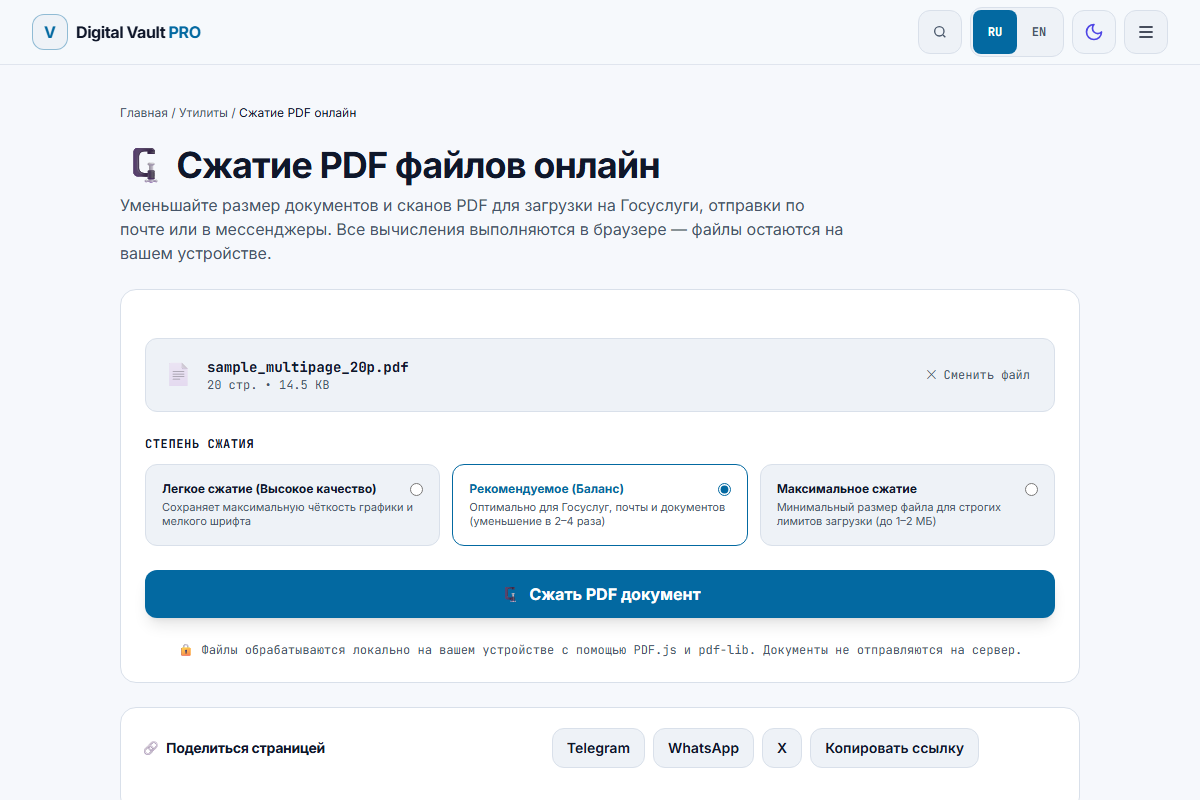
Figure 1: PDF Compressor interface with Balanced, Maximum, and High Quality presets.
Real benchmark numbers: what actually happens to file size
Most online compression tools make vague marketing promises like "reduce file size by 90% without quality loss". That is technically impossible: true lossless PDF optimization only strips unreferenced font descriptors and metadata, which rarely saves more than 5% to 15%.
Meaningful size reduction always involves downsampling raster images and adjusting JPEG quantization matrices. We ran two actual test fixtures from our automated test suite through the engine:
| Document Type | Original Size | Preset | Result Size | Reduction | Visual Legibility |
|---|---|---|---|---|---|
| Scanned Document (Photo) | 481.7 KB | Balanced (150 DPI) | 192.7 KB | -60.0% | Sharp text, clean stamps |
| Scanned Document (Photo) | 481.7 KB | Maximum (100 DPI) | 114.3 KB | -76.3% | Acceptable, minor JPEG halos |
| Pure Vector Text (20 pages) | 14.5 KB | Balanced | 345.7 KB | +2,284% (Bloat) | Flagged as "Already optimized" |
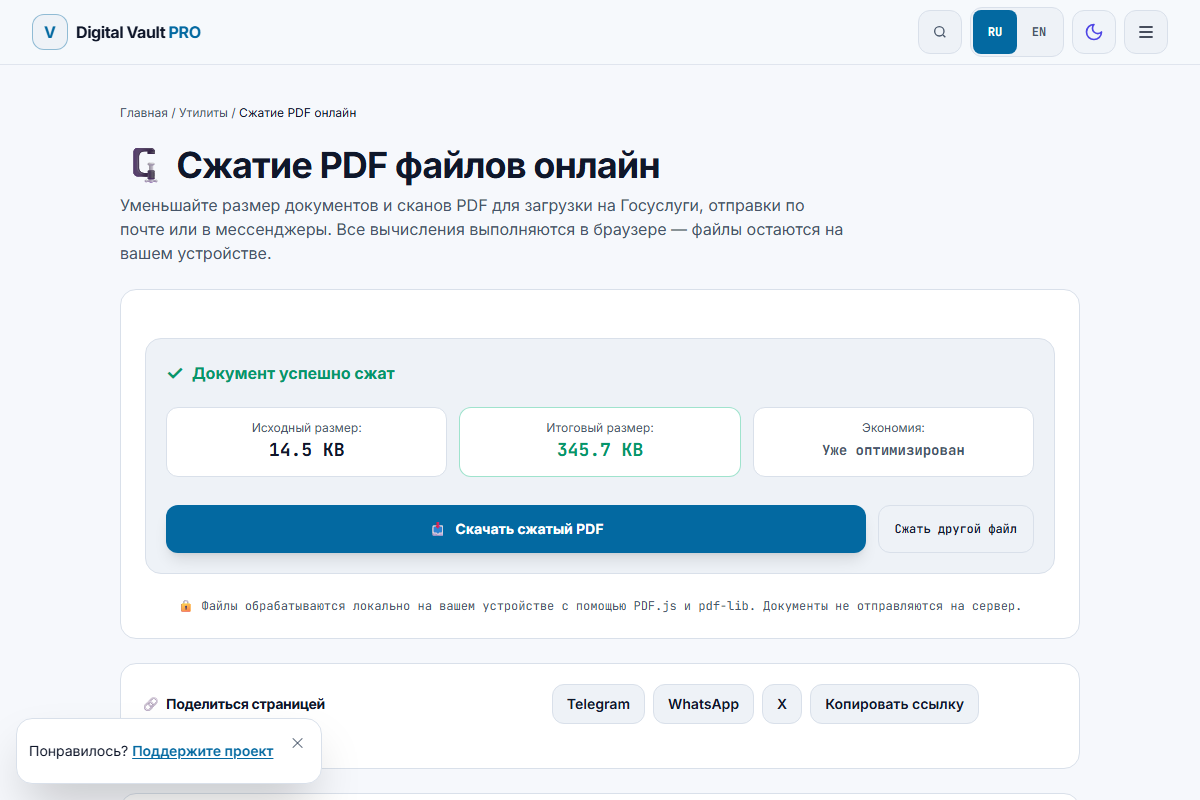
Figure 2: Real test run showing original vs compressed size and savings indicator.
Why vector PDFs can get larger (the honesty rule)
Notice row 3 in the table above: a 20-page document containing pure vector text was 14.5 KB before processing, but jumped to 345.7 KB when rendered to canvas.
This happens because vector text in PDF is stored as mathematical glyph positions and standard font definitions. When a browser canvas rasterizes those pages to compress them, it converts every page into a bitmap array. Twenty bitmap images at 150 DPI take hundreds of kilobytes, whereas the mathematical glyphs took just 14 kilobytes.
Takeaway: If your PDF was created directly from Word, Google Docs, or LaTeX and contains no scanned photos, it is already as small as it can get. Do not compress it with rasterizers. If you need to manipulate its pages, use our PDF Page Organizer or PDF Merger, which preserve vector streams without bloating file weight.
How to hit specific target thresholds
1. Compressing to under 1 MB (Job applications, email attachments)
Most email clients (Outlook, Gmail) have a 25 MB limit, but HR portals and ATS systems frequently enforce a 1 MB ceiling for resumes. For a 3-page to 10-page document with headshots and logos:
- Select the Balanced preset.
- This targets 150 DPI, which matches standard desktop monitor resolution and prints cleanly on office laser printers.
- Embedded color images are quantized with a quality factor of 0.82, cutting large 4 MB phone snapshots down to 300-600 KB.
2. Compressing to under 200 KB (Government portals, biometric visas)
Portals for passport renewals, court submissions, and public tenders often impose an aggressive 200 KB or 300 KB file limit per attachment.
- Select the Maximum Compression preset.
- Page rendering drops to 100-110 DPI, and JPEG compression quality drops to 0.65.
- In our test on a 481.7 KB document, this produced a 114.3 KB output—well under the 200 KB threshold.
- Check fine print like contract signatures or small 6 pt footnotes before submitting: at 100 DPI, thin serif letters will have slight compression artifacts.
When browser compression is the wrong tool (and what to use instead)
We believe in recommending the right tool for the job, even when it is not our website. Browser-based compression is not suitable in three scenarios:
- Digitally signed legal contracts: If your PDF has an embedded cryptographic X.509 signature (PKI, eIDAS, DocuSign), re-rendering pages destroys the original byte signature. The signature will show as "INVALID / MODIFIED" in Adobe Acrobat. You must re-export the unsigned source document at a smaller size and sign it again.
- Architectural blueprints and vector CAD files: Converting architectural vector drawings to a 150 DPI canvas destroys vector zoom precision. For vector files, use
qpdf --linearize --stream-data=compress input.pdf output.pdf. - Huge files over 50 MB on mobile devices: Processing a 100 MB PDF requires uncompressing multiple pages into GPU memory. On budget Android devices or iPhones with strict Safari tab memory limits (typically 1 GB RAM per tab), Safari will force-reload the page. For batch archiving of hundreds of heavy files, use command-line Ghostscript.
Offline CLI alternatives: Ghostscript and QPDF
If you are comfortable with the terminal or need to automate compression across hundreds of files on a server, run Ghostscript:
# High quality (approx 150 DPI, ideal for 1 MB targets):
gs -sDEVICE=pdfwrite -dCompatibilityLevel=1.4 -dPDFSETTINGS=/ebook \
   -dNOPAUSE -dQUIET -dBATCH -sOutputFile=output.pdf input.pdf

# Maximum compression (approx 72 DPI, ideal for <200 KB targets):
gs -sDEVICE=pdfwrite -dCompatibilityLevel=1.4 -dPDFSETTINGS=/screen \
   -dNOPAUSE -dQUIET -dBATCH -sOutputFile=output_200k.pdf input.pdf
For pure vector cleanup without modifying images:
qpdf --recompress-flate --compression-level=9 input.pdf output.pdfSummary checklist before uploading your PDF
- Is the document mostly scanned paper? Use PDF Compressor on Balanced (for <1 MB) or Max (for <200 KB).
- Is it already vector text under 50 KB? Keep it as-is; compression will bloat it.
- Does it contain sensitive personal data (passport numbers, bank statements)? Keep it local in your browser; never upload it to public cloud converters.
Frequently asked questions
How do I compress a PDF to under 200 KB for online forms?
Select the "Maximum Compression" preset in our client-side tool. It scales down page rendering resolution to 100-120 DPI and applies JPEG quality 0.65 to embedded raster layers. For typical scanned documents and certificates (under 2 MB), this consistently pushes the file size down to 100-195 KB.
Are my confidential documents uploaded to a remote cloud server?
No. The compression happens entirely in your local browser memory using PDF.js for page rendering and pdf-lib for binary assembly. Your financial records, tax forms, and IDs never leave your computer or phone.
Why did my PDF become larger after compression?
This happens when your original PDF consists purely of vector text and fonts (like an exported Word doc of 15 KB). Re-rasterizing vector pages through a canvas at standard DPI turns lightweight mathematical curves into bitmap images, which increases file size. Our tool detects this and warns you when a document is already optimized.
Will compressing a PDF invalidate its digital signature?
Yes. Any compression tool that re-encodes pages, strips metadata, or modifies embedded raster streams alters the binary checksum of the document. If you have a cryptographically signed contract (e.g., DocuSign, Adobe Sign, or government PKI signature), compression breaks the signature certificate. In that scenario, re-export the original source document at a lower size before signing.
What is the difference between Balanced and Maximum compression?
The Balanced preset renders pages at 150 DPI with 0.82 JPEG quality, preserving crisp small text and fine line work while slashing file weight by 50-65%. Maximum Compression drops resolution to 100-120 DPI with 0.65 quality, prioritizing strict upload constraints (such as government portals with 200 KB to 1 MB limits) at the expense of slight visual softness on high-zoom screens.
How can I compress PDFs on Linux via command line without a browser?
Use Ghostscript: gs -sDEVICE=pdfwrite -dCompatibilityLevel=1.4 -dPDFSETTINGS=/ebook -dNOPAUSE -dQUIET -dBATCH -sOutputFile=compressed.pdf input.pdf. The /ebook preset yields ~150 DPI, while /screen yields ~72 DPI.